Welcome to the Ex Machina Community
Thank you for purchasing our speakers. We're glad to have you, and this page will walk you through connecting your speakers to Wi-Fi so you can access the configuration screen and adjust your settings.
Your speakers will work right out of the box without a Wi-Fi connection, but you'll need Wi-Fi to access EQ, boundary settings, latency modes, and other configuration options.
Before You Begin
Note the serial numbers on the rear of each speaker. If you have Selene or Selene+Poseidon, note the serial number of your EXCore unit instead (located on the bottom of the unit). Serial numbers follow the format TERRA-A-NNNN, or CORE-A-S-NNNN or CORE-A-M-NNNN. If you also purchased a pair of Gravity subwoofers, note both of their serial numbers as well. You'll need these when you enter the speaker configuration pages.
Additionally, we currently only support Google Chrome and Firefox, Safari support coming soon.
Setting Up Your Speakers
When you power on your speakers. Each one will begin broadcasting its own Wi-Fi network.
- Open your Wi-Fi networks. Each speaker appears as its own network, named EXMACHINA-MODELNAME-L-SERIAL NUMBER
- e.g. exmachina-terra-a-0001 or exmachina-core-a-s-0001 You can get the serial number from the back of each speaker, or in the case of Selene or Selene+Poseidon, you'll need the EXCore serial number located on the bottom of the unit.
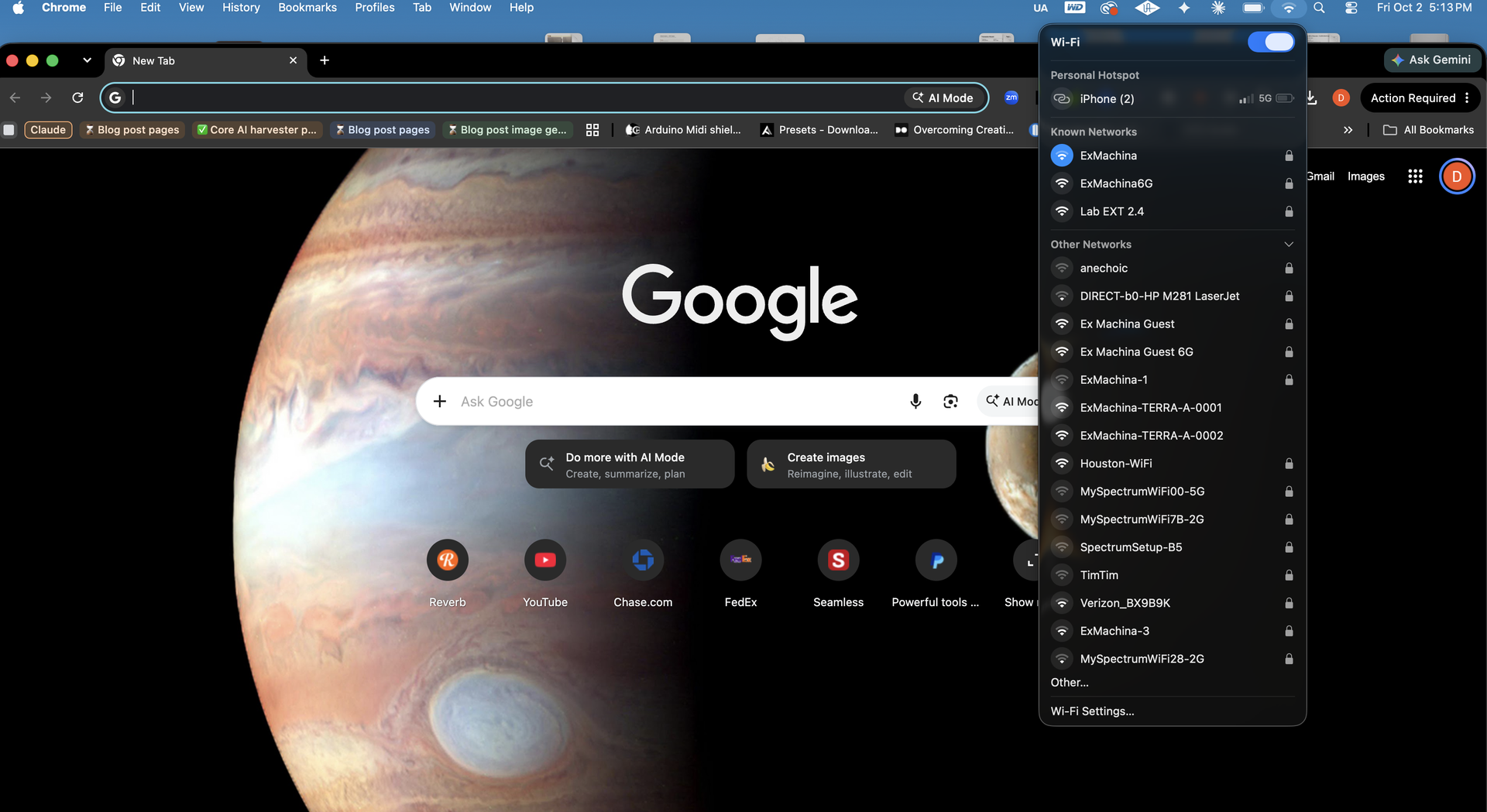
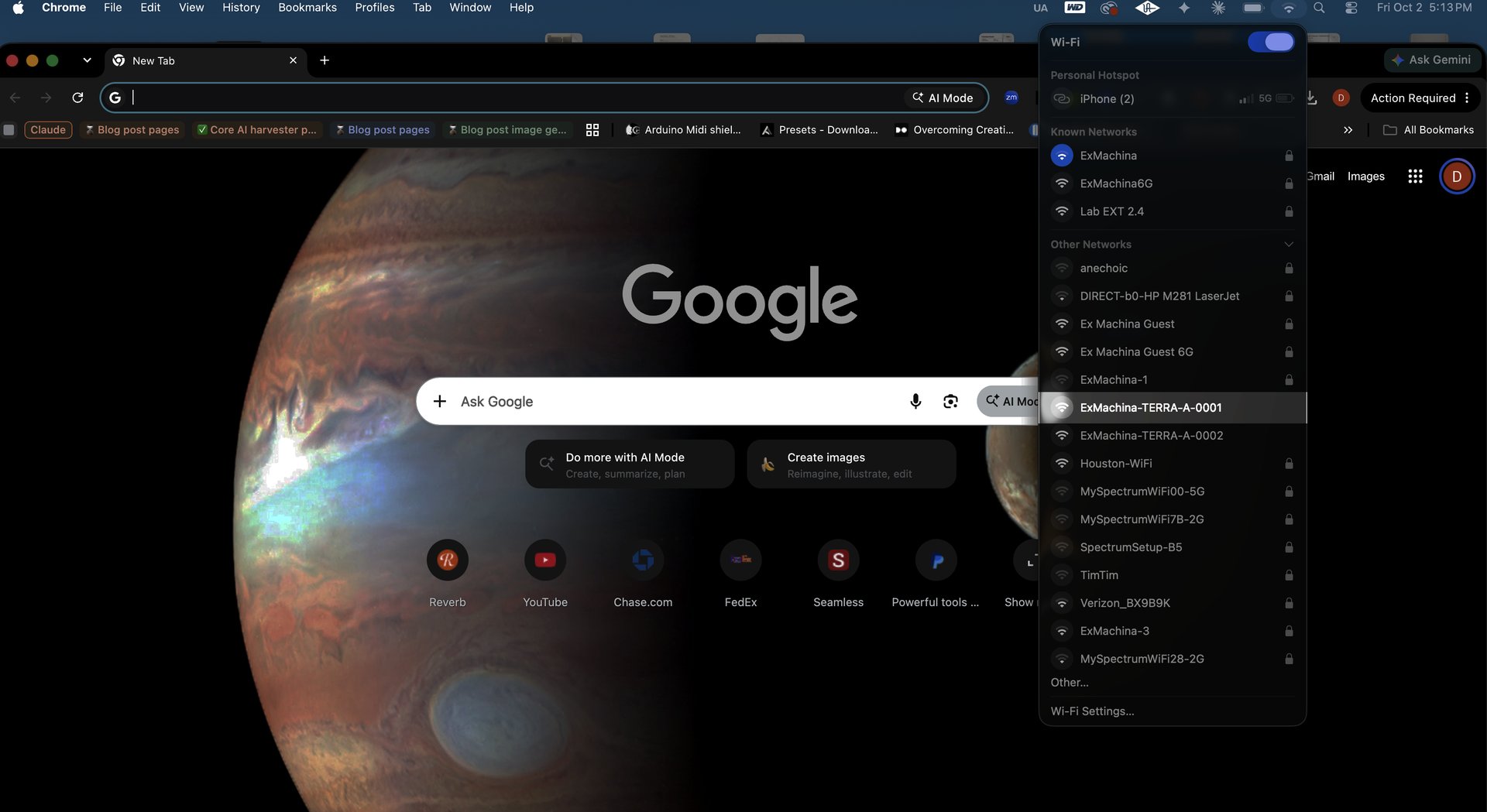
- Select the network for your first speaker.
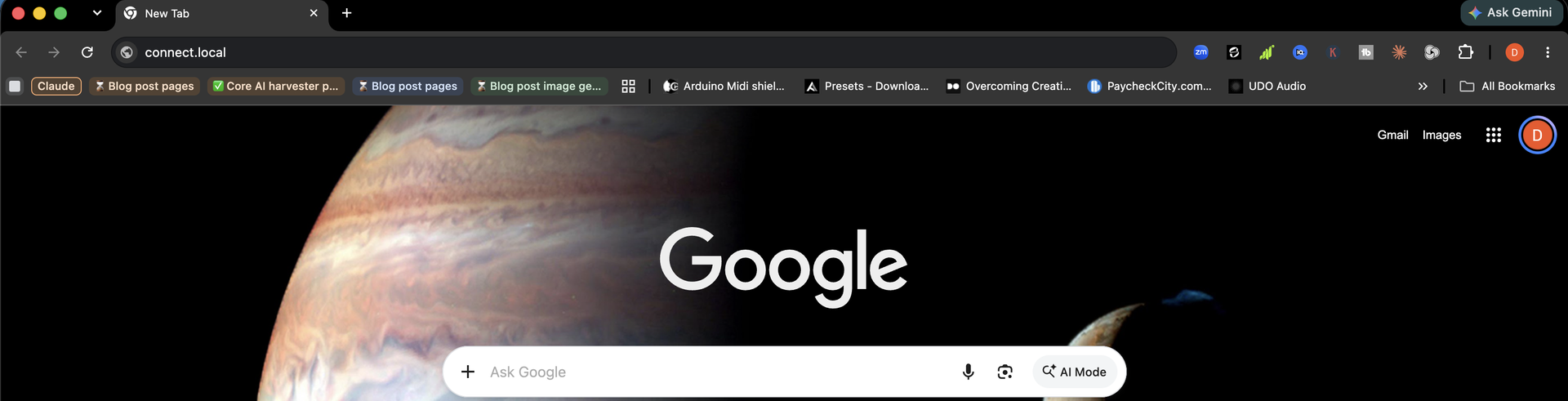
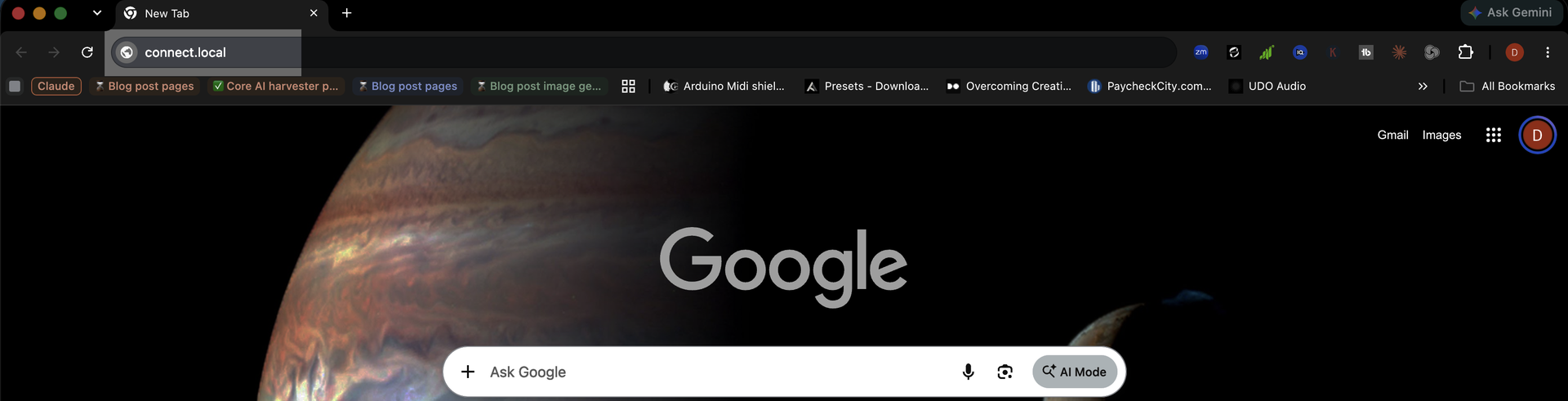
- Open a web browser and go to connect.local
- You'll see the Ex Machina Houston Setup screen. Under "Available Networks", click the dropdown (Manual Entry), select your home Wi-Fi network, and enter your Wi-Fi password.
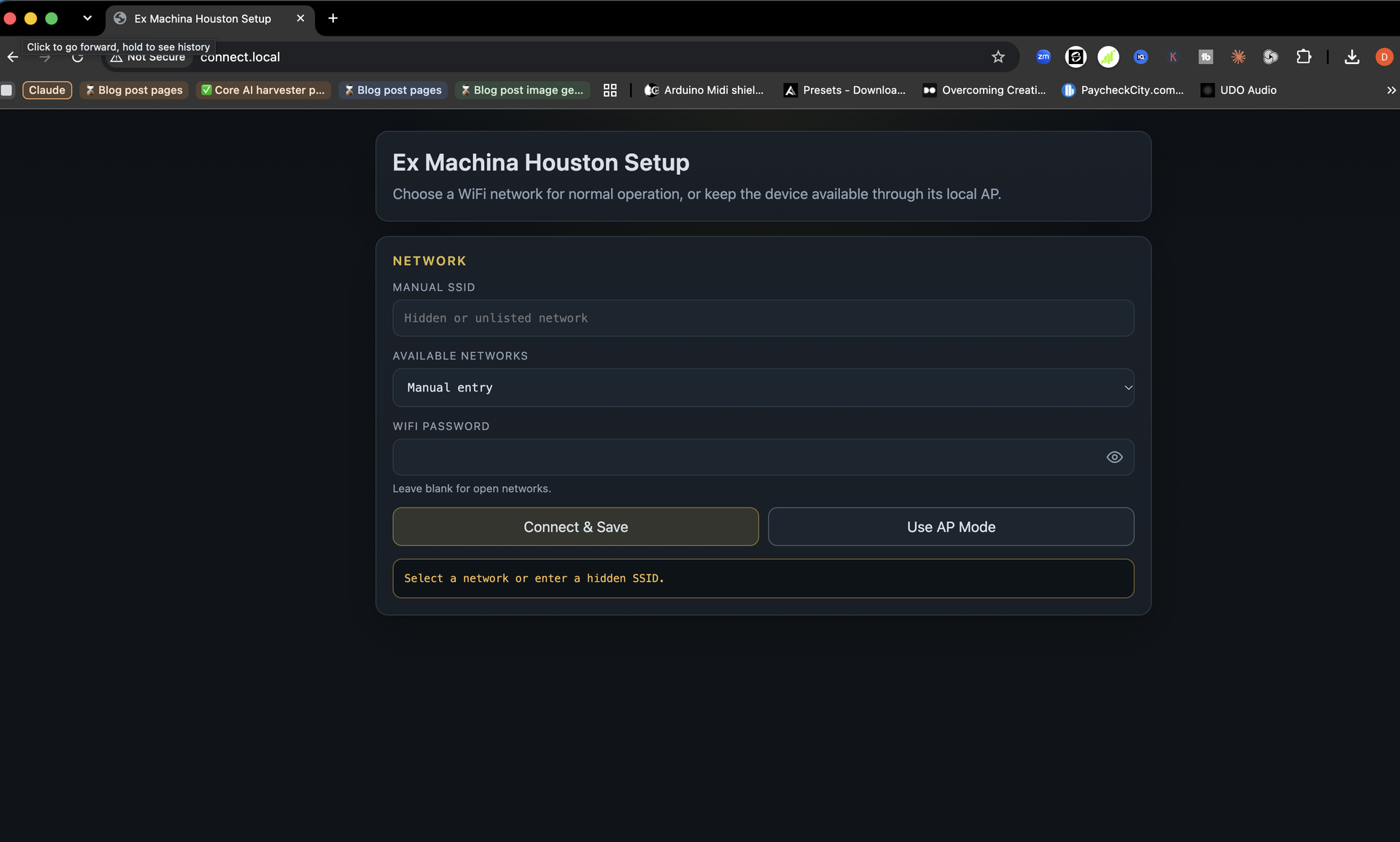
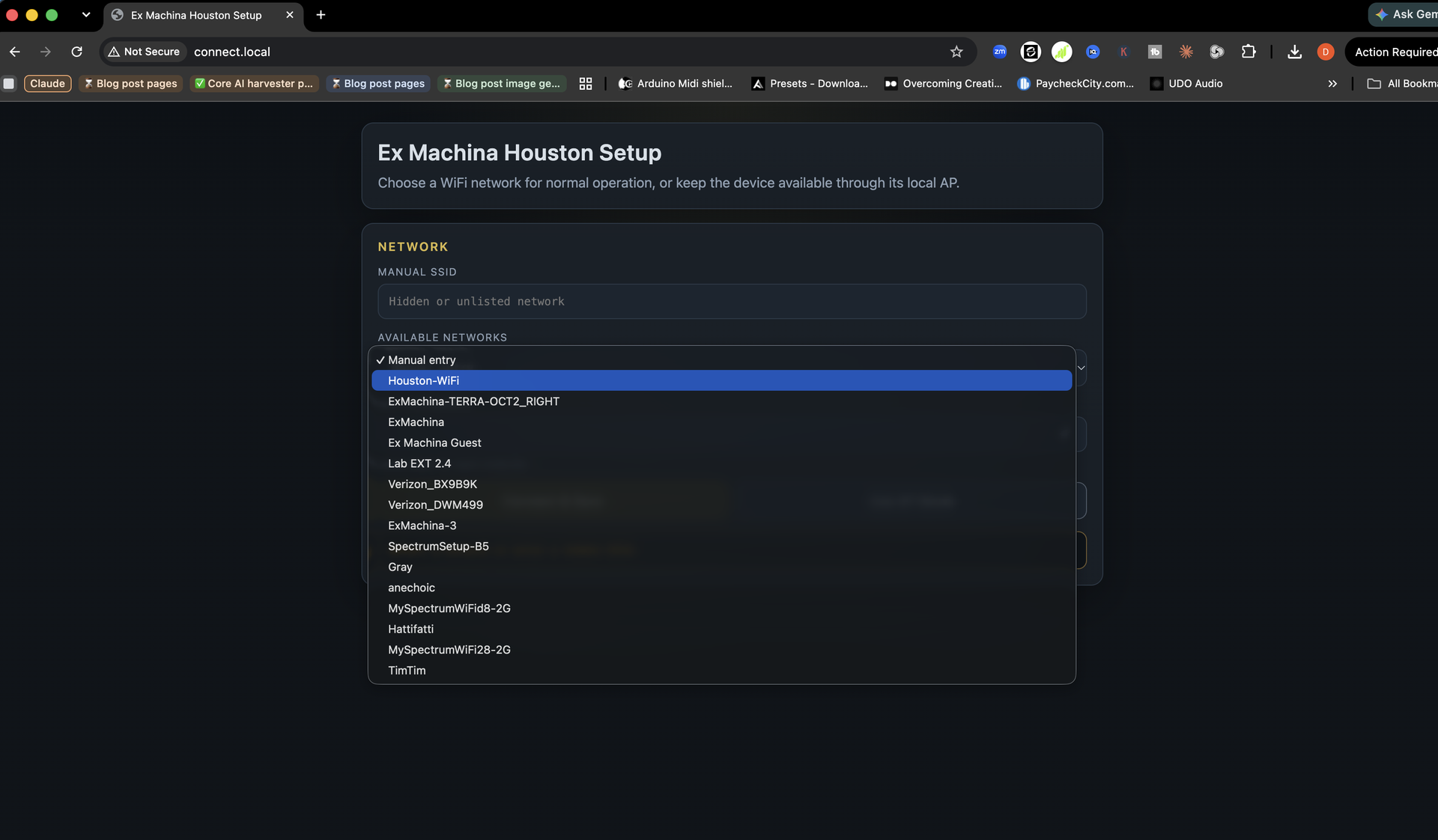
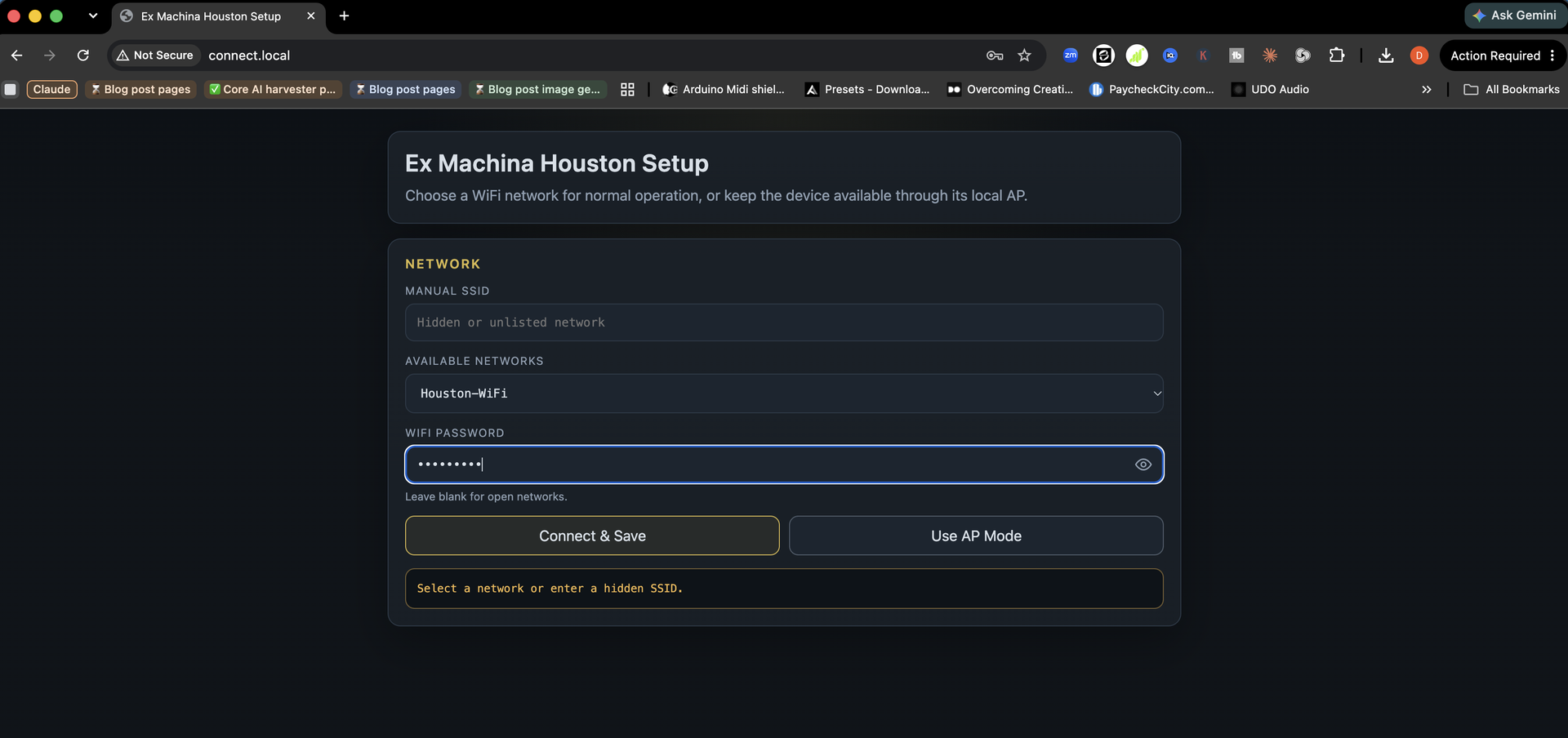
- Click Connect & Save. You'll see a Connecting screen. Your computer should automatically switch back to your home Wi-Fi network. This can take up to 2 minutes, depending on your computer and connection speed. Once connected your web browser should automatically open a new tab that takes you to exmachina.local
Note: If you enter an incorrect WiFi password, the speaker or EXCore will still attempt to connect, then fall back to AP Mode once the connection attempt fails. If this happens, you'll need to return to Step 1 above and repeat this process to connect it to your desired WiFi network.
About "Use AP Mode" : While we encourage all users to connect the speakers and EXCore units to a local WiFi network, we understand that this may not always be possible, either because the network is not reachable, WiFi signal is weak or because the user does not want to connect to a local WiFi network. Using AP mode will allow you to use the Houston software to finish setting up your speaker or EXCore. You will still need to connect a computer to the speaker or EXCore's WiFi network from Step 1 to access the Houston software.
Note: You will only be able to connect to, configure or toggle controls such as Mute, Latency Mode, Polarity Invert, Sub Mute, on one speaker at a time in AP mode.
Additionally, you will not be able to update software, firmware on your speaker in AP-Only Mode and in the situation of a support request, you will be asked to submit speaker or EXCore logs, which will require WiFi access.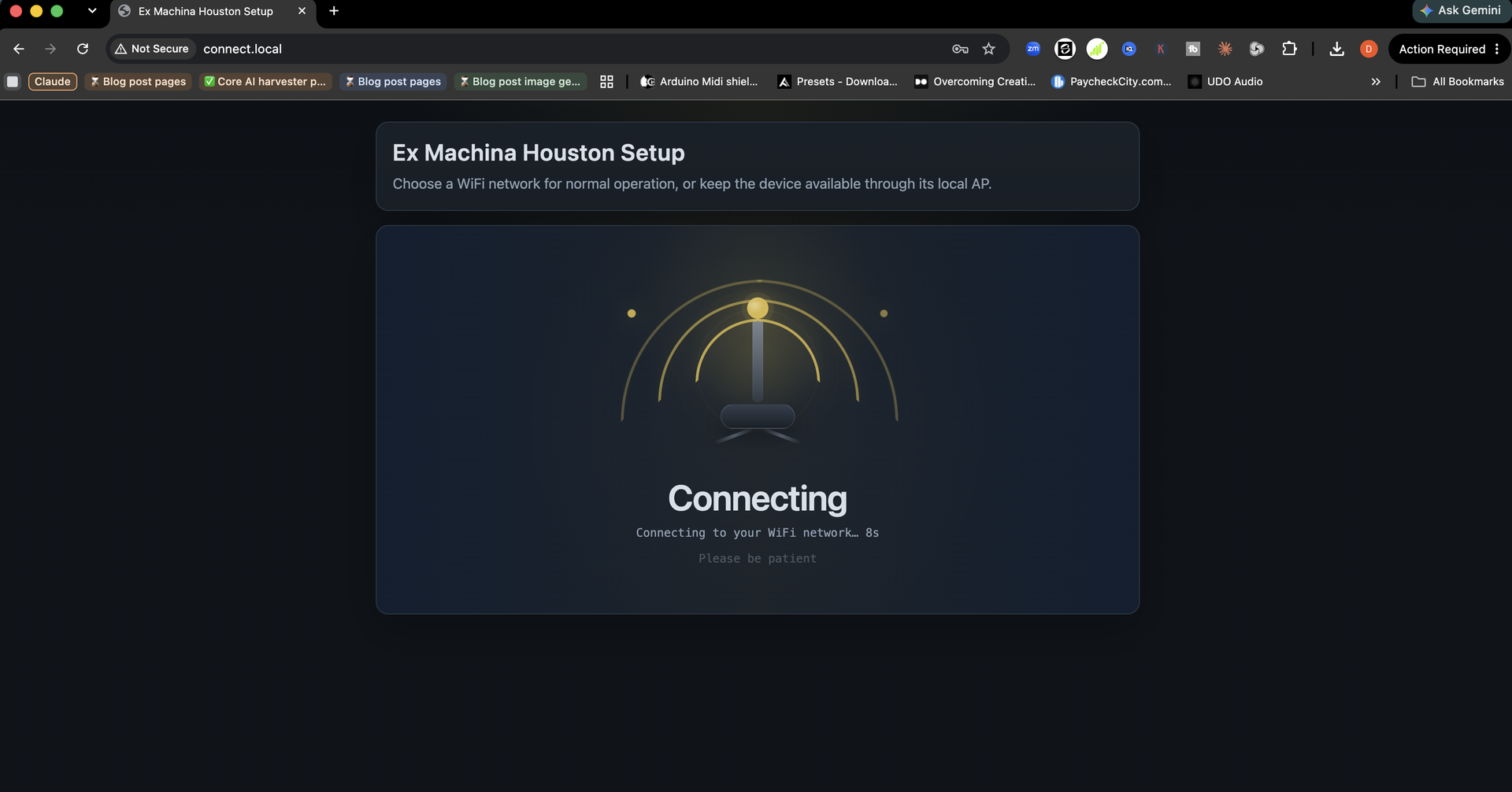
- Once connected, the exmachina.local tab will display the Choose a Speaker screen.
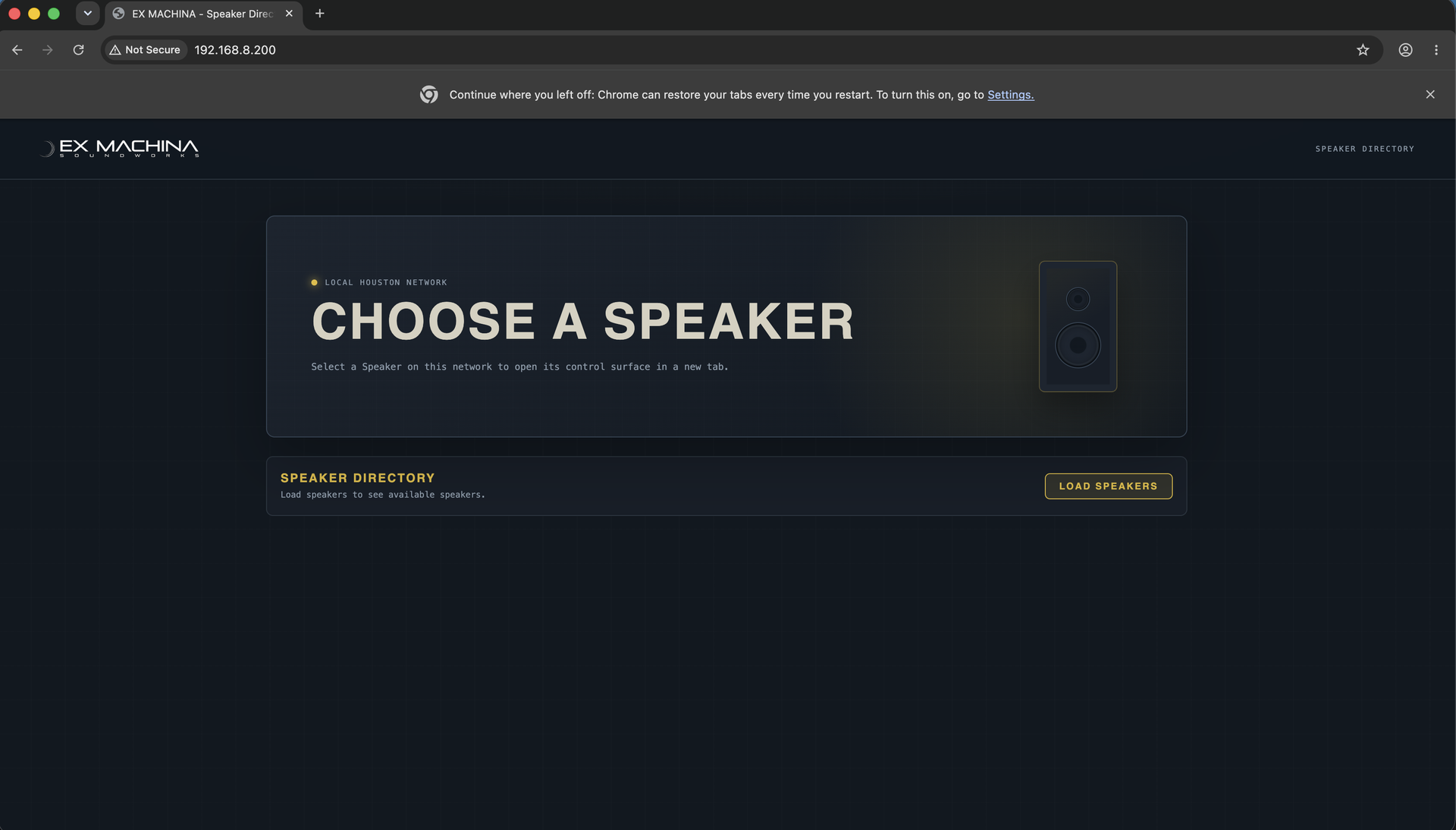
- Before you click on anything.
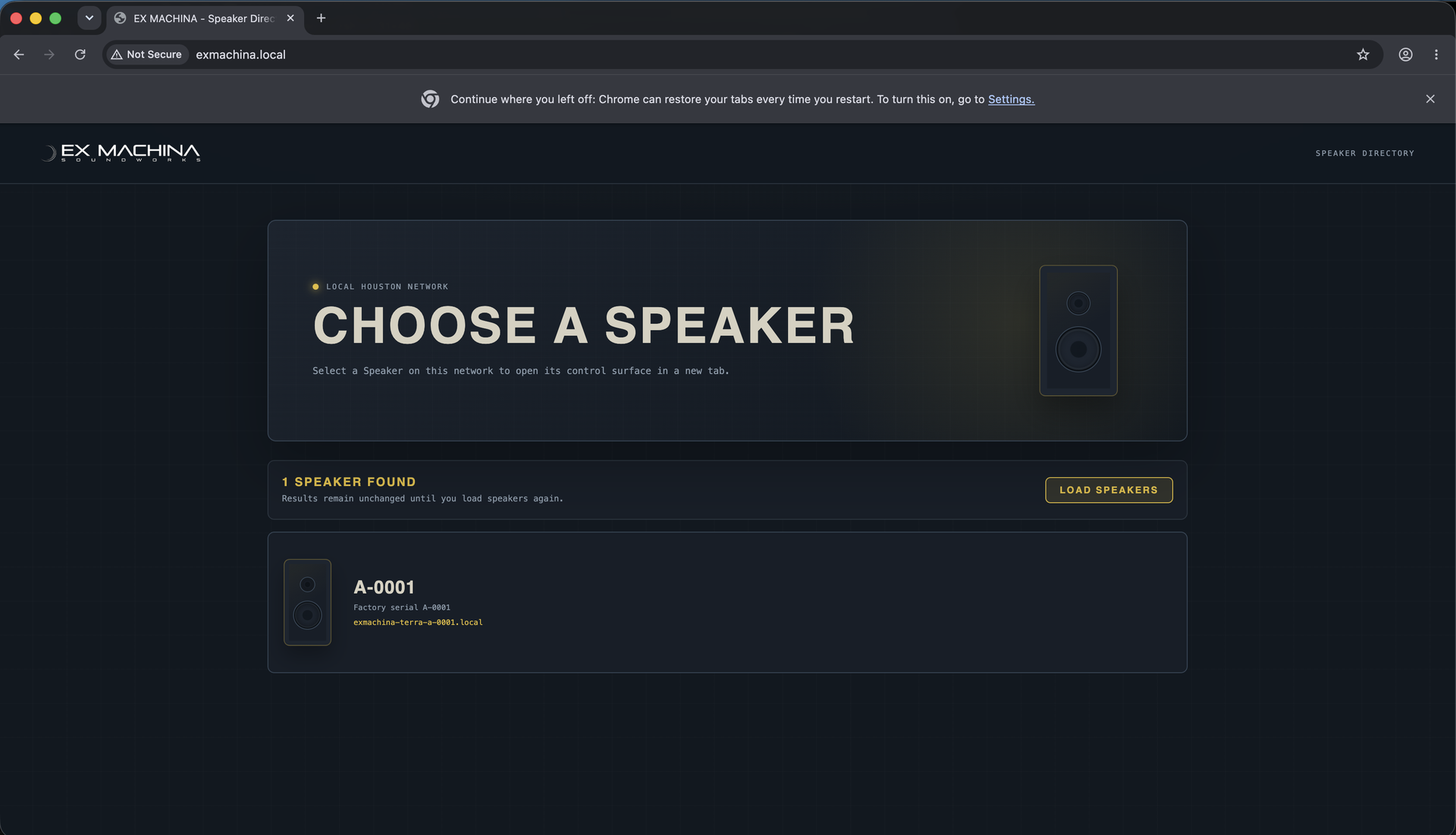
- Repeat steps 1 through 6 to connect your other speaker by returning to the connect.local tab in your web browser (for EXCore you only need to do this one time for each EXCore connected to your WiFI network). Once finished, you'll return to this screen automatically.
- Note: If for some reason your browser doesn't automatically open the exmachina.local tab, often because a pop-up blocker is preventing it, you can open a new browser tab and enter exmachina.local or the specific speakers address which is exmachina-modelname-serialnumber.local e.g. exmachina-terra-a-0001.local to access the speaker directly. The same pop-up blocker behavior can also affect the Speaker Directory further on: if clicking a speaker there doesn't open its configuration page in a new tab, you can open a new tab yourself and browse to that speaker's local address directly.
- On the Choose a Speaker screen, click Load Speaker.
- Note: anytime you connect another Terra or EXCore to your WiFi network, you will need to click Load Speaker, to see the newly connected unit.
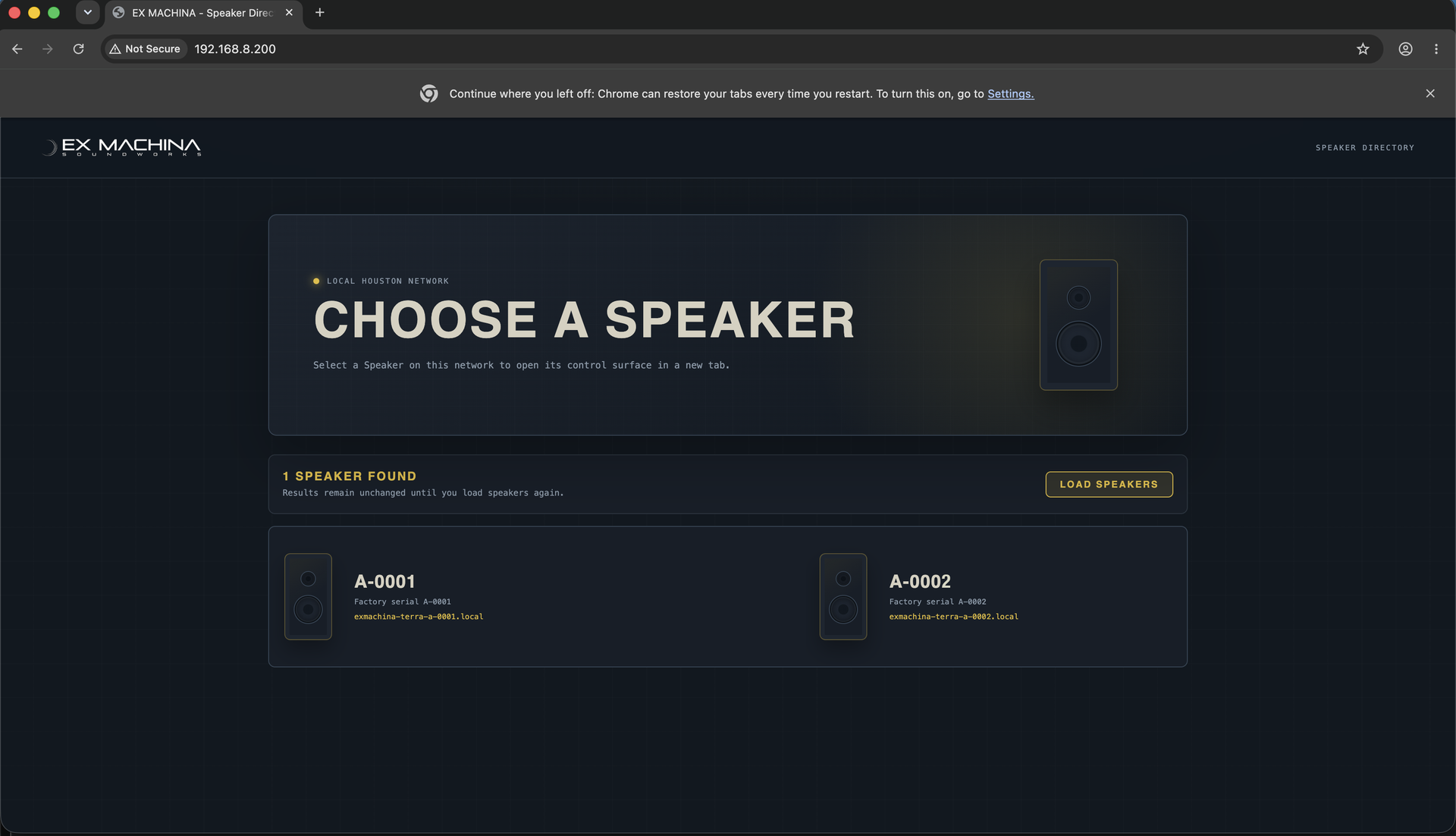
- The Speaker Directory will appear, displaying icons for all connected speakers. Click either speaker to open its configuration page in a new browser tab. From the new browser tabs, you'll be able to adjust EQ, boundary settings, latency mode, and more — see your product manual for details.
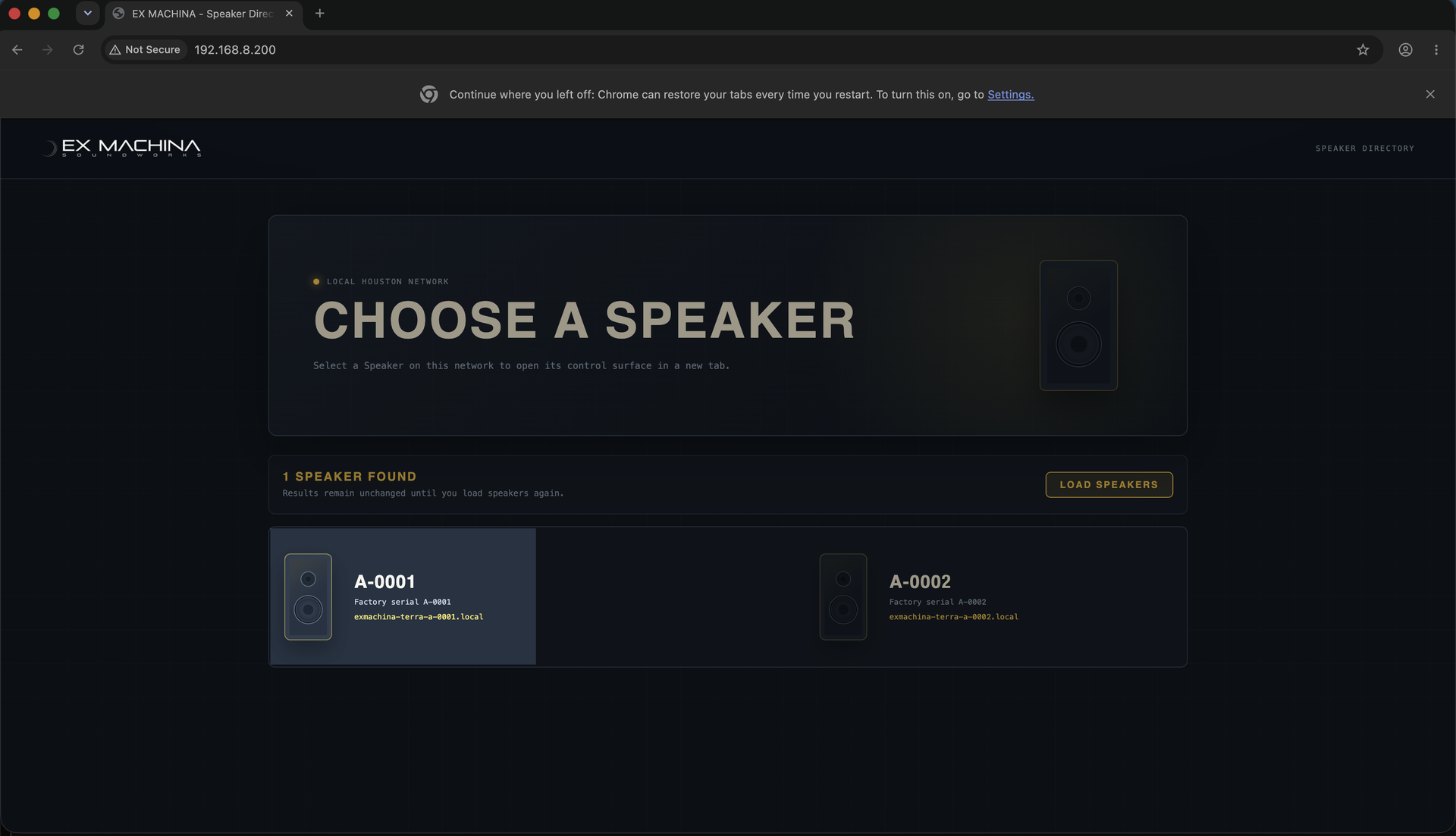
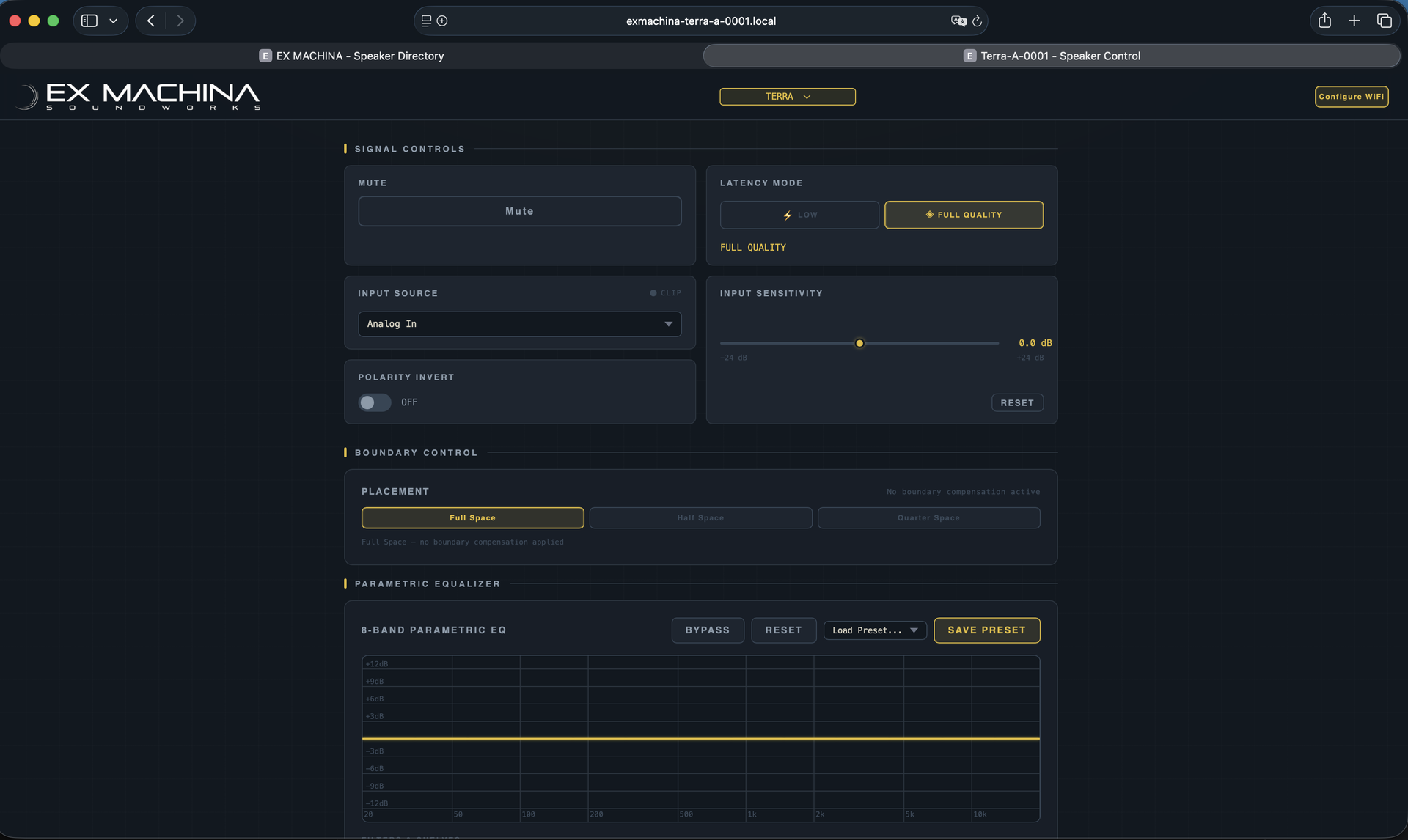
- To configure your other speaker, return to the exmachina.local tab and select it from the Speaker Directory. We recommend keeping both configuration tabs open for quick access.
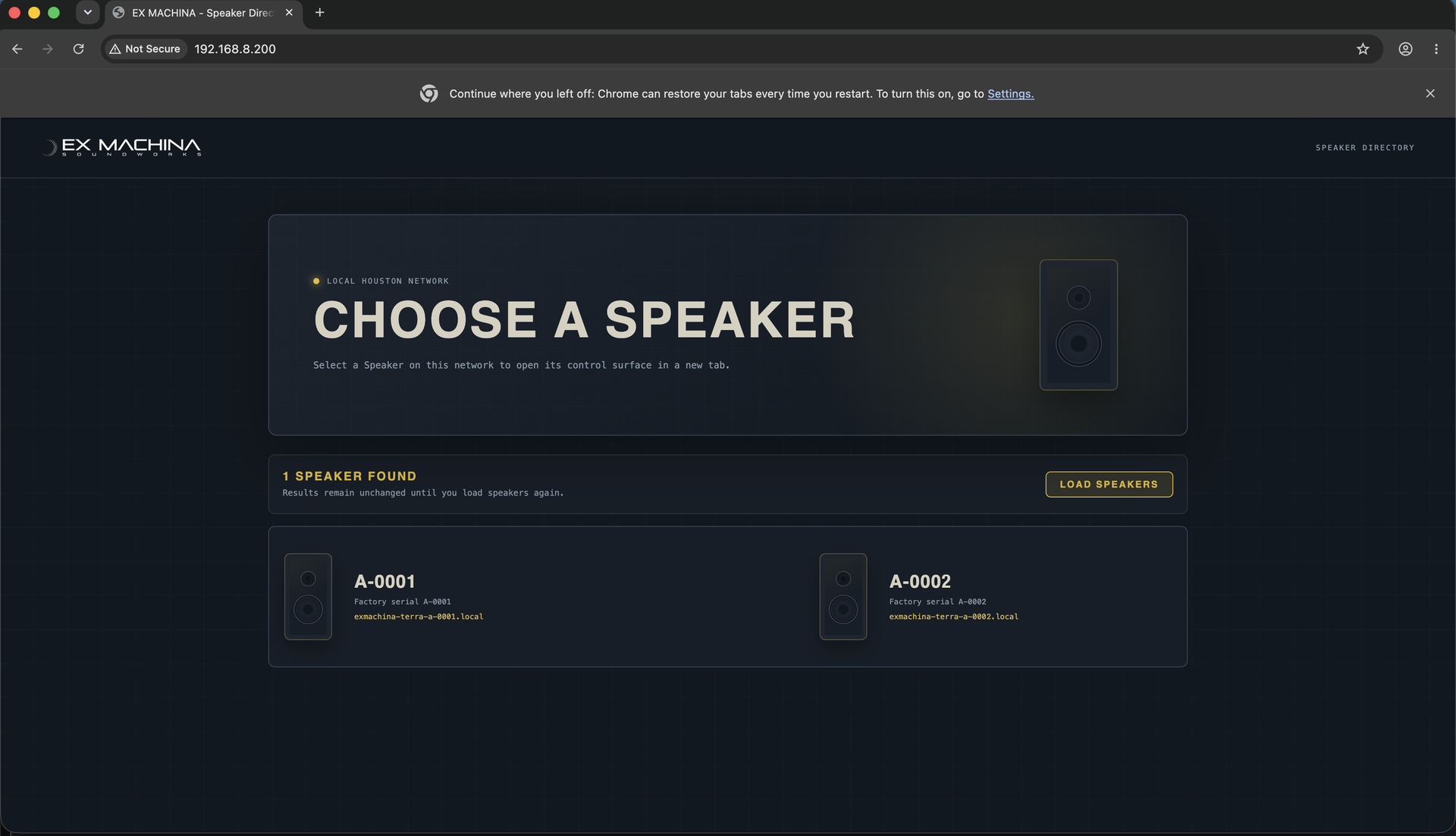
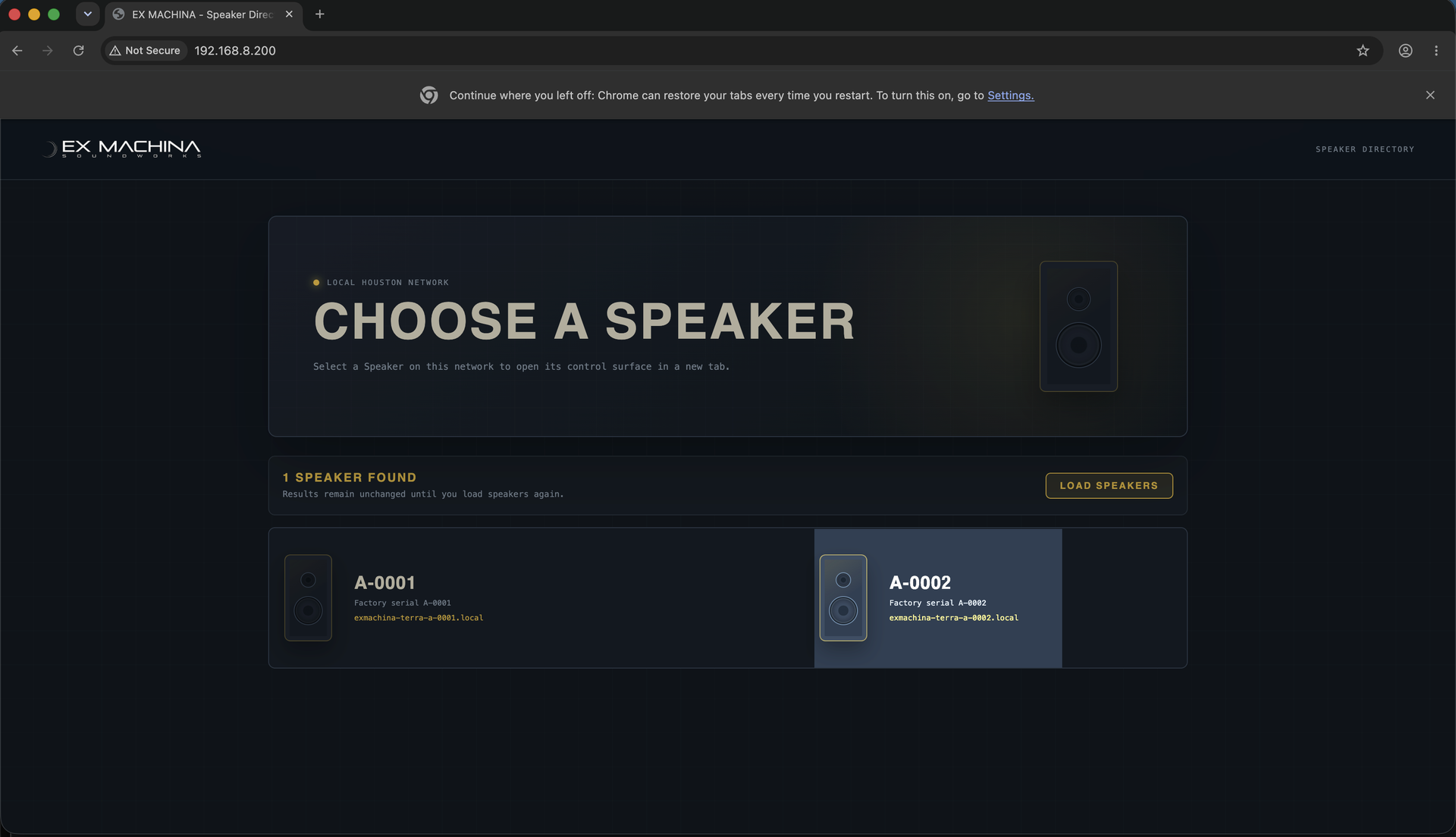
Note: the first time you load these screens, you may notice a short delay. Once both configuration pages have loaded, this delay should be minimal going forward.
Once your speakers are connected to your Wi-Fi network, they should remember your Wi-Fi network and not need to repeat these steps. If for some reason, your speaker or speakers do lose the network and won't connect, repeating this process should get you back on to your Wi-Fi network.
To learn more about configuring your speakers head over to the support area of the site under manuals or you can click here (insert link to Houston Manual)